

HotMail(Windows Live) Help
These instructions are designed for use with IE, if you are not using IE, it may still work, but some steps might be different.
Once you have created an image, click on the "HotMail" link. Log in to flamingtext members area. If you don't already have an account, sign up for one, it's simple and free.
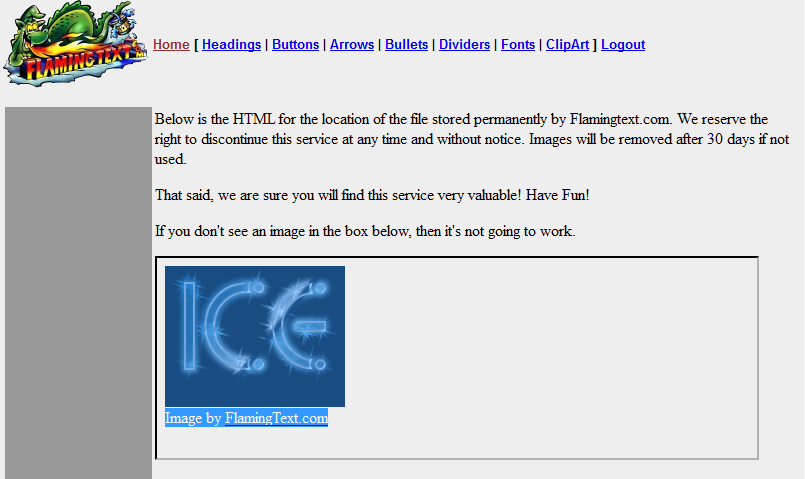
Select the logo in the box on the instructions page. You can do this in two ways.
- 1) Click inside the box containing logo and hit Ctrl-A, or
- 2) Move the mouse pointer to just above the logo image and then click and hold(drag) the mouse while you move the mouse down to just after the "Image by FlamingText.com" message.
1. Click Ctrl-C (to copy the logo).
Now click the "Hotmail" link on the instructions page, and log into your hotmail account.
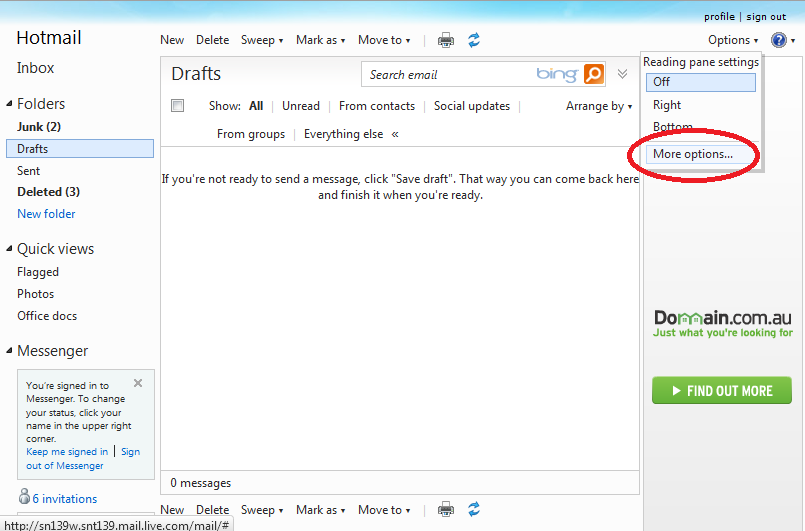
2. Click on Options and then More Options....
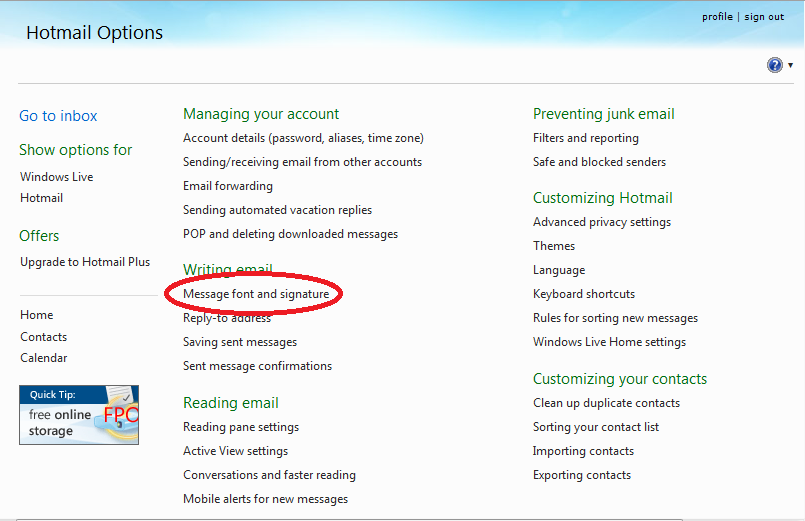
3. Click Message font and signature
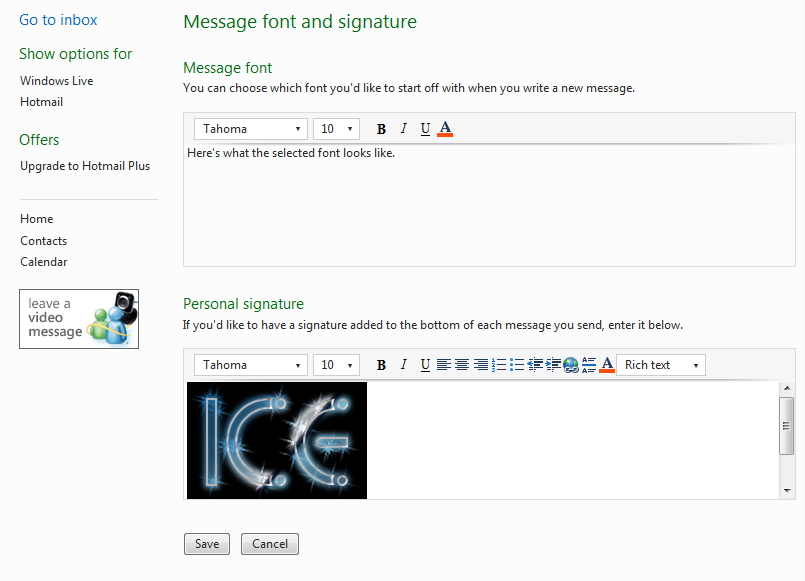
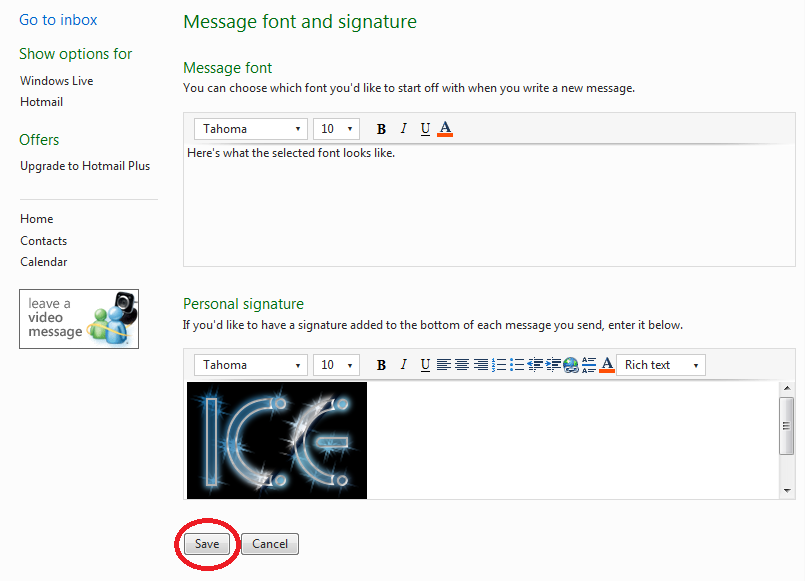
4. Click in the signature box area, and press Ctrl-V(to paste logo copied in step 1).
5. Click Save. Now the signature is set up!
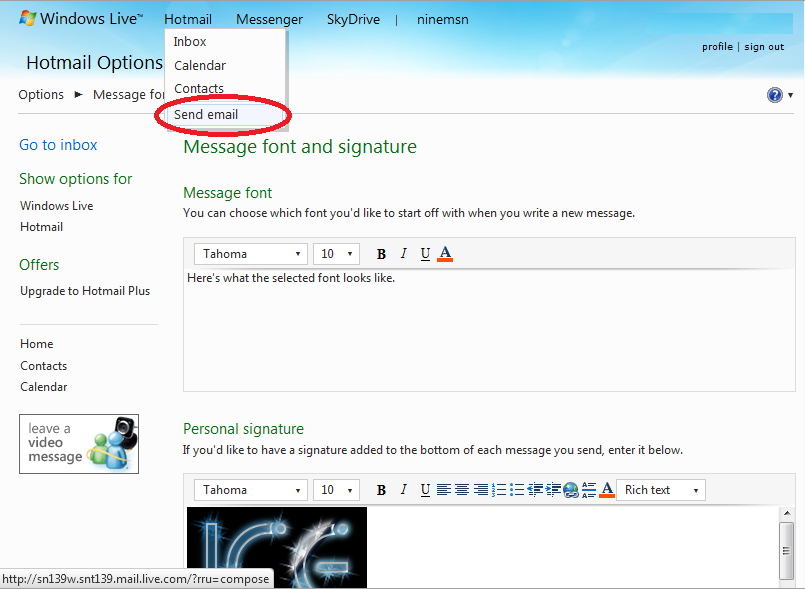
6. To check that it worked do the following:
Click Send email.
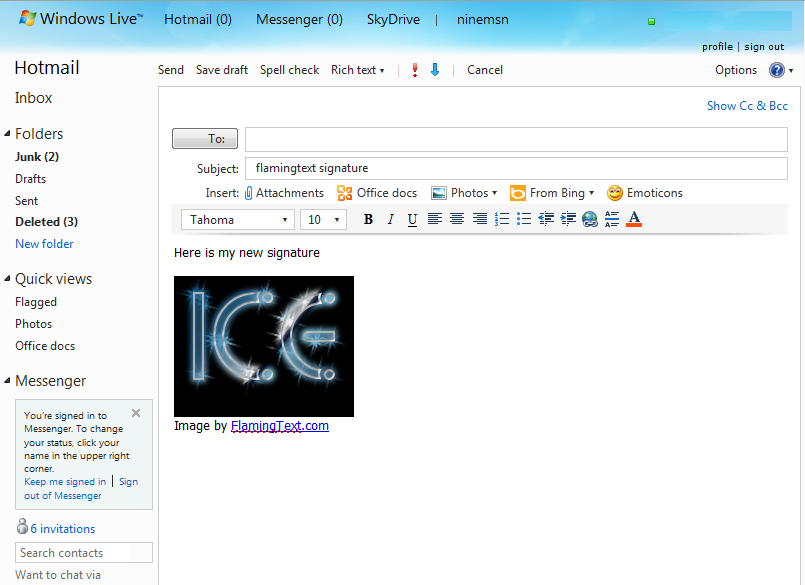
7. Now your signature appears automatically in your message.